Interactive Mode
Important
The Tabular Editor CLI is in Limited Public Preview. It is offered for evaluation with a Tabular Editor account; no license is required during preview. Commands, flags, and outputs may change before general availability. The preview build stops functioning after 2026-09-30. We recommend against using the CLI in production CI/CD pipelines during preview.
Interactive mode is a guided read-eval-print loop (REPL) for exploring a model from the terminal. It's the gentlest on-ramp for users who are new to command lines, and a convenient workspace for ad-hoc sessions against a single model.
Starting a session
To Start a session run any of these commands:
te interactive                              # Start and connect to a model later
te interactive ./model                      # Start with a local model
te interactive -s MyWorkspace -d MyModel    # Start with a remote model
te interactive accepts a few flags for tuning the session:
--no-banner- skip the welcome banner on startup.--echo- echo each executed command to stdout before its output. Useful for logging when driving the REPL from a script.--batch- non-interactive batch mode: read commands from stdin line by line, execute each, and exit on EOF. Automatically enabled when stdin is redirected.--no-batch- force interactive TTY mode even when stdin is redirected (mutually exclusive with--batch).
The session prints a welcome banner, shows the active model, and opens you at a model-aware prompt:
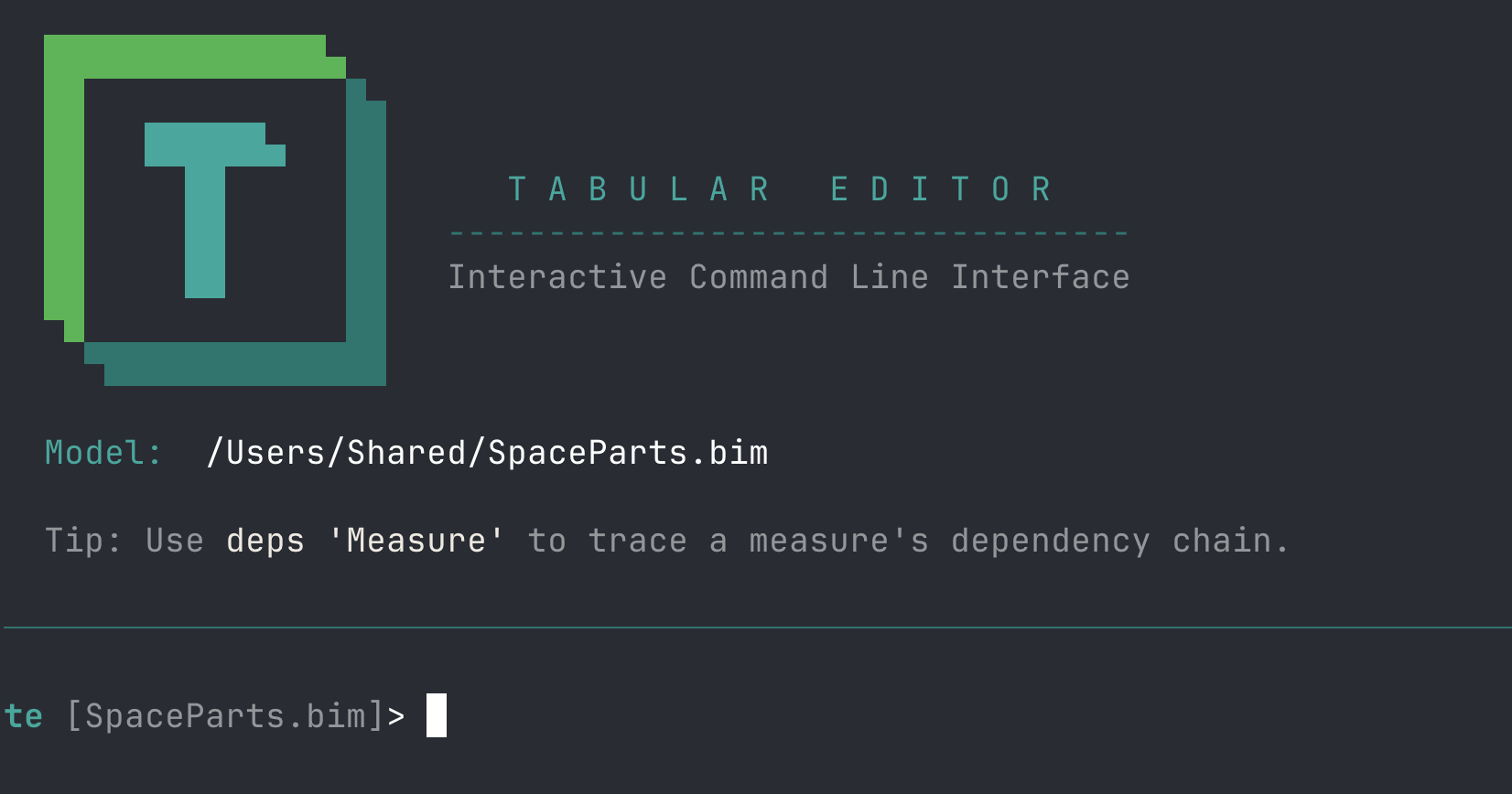
If no model is set, the prompt is just te> - simply use connect for connection picker, connect <path> or connect <workspace> <model> to connect to one.
Commands inside the session
Once a REPL has started, every te subcommand is available without the te prefix:
ls tables
get "Sales/Revenue" -q expression
query -q "EVALUATE TOPN(5, 'Sales')"
bpa run --fail-on error
Each command accepts --help the same way it does outside the session:
deploy --help
Quoting and DAX-style paths
The REPL line splitter recognises the same quoting forms as object paths so DAX-shaped references are interpreted as a single argument:
'...'and"..."- single- and double-quoted segments. The quote characters are stripped, doubled quotes escape a literal occurrence.[...]- bracketed segment. Brackets are preserved in the resulting argument so a path like'Internet Sales'[Sales Amount]reaches the command as one token that the path parser can re-interpret as a DAX reference. Doubled closing brackets (]]) stay verbatim for the same reason.
get 'Internet Sales'[Sales Amount]   # One argument, DAX form
get [Total Sales]                    # Lone-bracket model-wide lookup
ls 'Net Sales'/'Sales Amount'        # Quoted segments with a slash separator
Unterminated groups absorb to end of line, so a stray opening quote or bracket fails with an explicit error rather than splitting silently.
Built-in REPL commands
These are handled by the REPL itself, not the regular command tree:
| Command | Purpose |
|---|---|
help or ? |
List available commands. |
status or pwd |
Show the active model/connection. |
clear or cls |
Clear the screen. |
exit, quit, or q |
Exit interactive mode. |
Guided prompts
When interactive mode is active, commands that need missing input prompt for it instead of failing. Running auth without a subcommand opens a picker for Login / Status / Logout; running deploy without --force shows a summary and asks for confirmation (n is the safe default).
To disable prompts for a single command inside the session, pass --non-interactive.
Piped and redirected input
Interactive mode also accepts piped or redirected stdin, so the same REPL can be driven from a script instead of typed by hand. Each line of input is run as a command, exactly as if you had entered it at the prompt, and the session exits when input is exhausted (or when it reaches an exit line).
printf "ls\nexit\n" | te interactive ./model        # bash / git-bash
te interactive ./model < script.te                  # redirected file
(echo ls & echo exit) | te interactive .\model :: Windows cmd.exe
Lines that start with # are treated as comments and skipped, so you can annotate a script file:
# script.te - inspect the model, then exit
ls tables
ls measures
exit
Batch mode and exit codes
When stdin is piped, --batch is the default: the session stops at the first command that fails and exits with a non-zero code, which makes a piped run safe to use as a build or CI step. Pass --no-batch to keep running the remaining lines even after a command fails. The process exit code is 0 for a clean run and non-zero when a command fails under batch mode.
# Default when piped: stop at the first failing command, exit non-zero
printf "bpa run --fail-on error\ndeploy --force\nexit\n" | te interactive ./model

# Run every line regardless of failures
printf "bpa run --fail-on error\ndeploy --force\nexit\n" | te interactive ./model --no-batch
Readable transcripts
--echo writes each input line to stdout ahead of its output, which is handy when capturing a transcript of a piped run. Comment lines are not echoed.
printf "ls tables\nexit\n" | te interactive ./model --echo
Options
| Option | Description |
|---|---|
--no-banner |
Suppress the welcome banner. |
--echo |
Echo each input line to stdout (useful for piped transcripts). |
--batch |
Exit non-zero on the first failing command (default when stdin is piped). |
--no-batch |
Continue after errors even when stdin is piped. |
Welcome banner vs. preview notice
Two separate messages can appear at the start of a session - don't conflate them:
- The welcome banner is the interactive splash described under Starting a session. It is suppressed with
--no-banner. When stdin is piped, no welcome banner is emitted in the first place, so--no-bannerhas a visible effect only in a true interactive (TTY) session. - The preview-expiry notice (
This is an early preview release ...) is a different message. It is always written to stderr and is not affected by--no-banner. Suppress it withte config set hidePreviewNotice true.
Auto-launch on empty invocation
Running te in a terminal with no arguments drops you straight into the interactive REPL, so exploring a model is as fast as opening a shell and typing te. When stdin, stdout, or stderr is redirected (piped output, CI pipelines, scripts), the CLI falls through to its normal parse and prints help instead - so shell scripts that invoke te without a subcommand keep behaving the same way.
The behavior is controlled by the launchInteractiveMode config key with three values:
| Value | Effect |
|---|---|
auto (default) |
Launch the REPL only when all three streams are attached to a TTY. Otherwise fall through to normal parse. |
always |
Launch the REPL regardless of stream redirection. Useful when you always want an interactive session. |
never |
Never auto-launch the REPL. te on its own prints help, matching the pre-0.6.0 behavior. |
Change it globally with:
te config set launchInteractiveMode never    # keep the classic help-on-empty behavior
te config set launchInteractiveMode auto     # restore the default
Override for a single invocation via the TE_INTERACTIVE environment variable (same values), or pass --non-interactive on the command line - both force never for that call, so te --non-interactive prints help instead of launching the REPL.
When to use interactive vs. non-interactive
- Interactive mode is best for exploration, learning the CLI, one-off bulk edits against a single model, and demos.
- Non-interactive mode (the default outside
te interactive) is what you reach for when scripting, automating, or running in CI. See Automation and Scripting and CI/CD Integration.
The two share the same command tree - anything you run inside te interactive can be pasted into a shell script by prefixing it with te.
Related pages
- Command Reference - full command reference.
- Authentication and Connections - connect to workspaces and manage profiles.
- Automation and Scripting - when to leave interactive mode.